INSERT ALTERNATIVE TEXT FOR YOUR HEADER IMAGE HERE
Showing posts with label Sher's FTU Tuts. Show all posts

Sunday, June 28, 2009

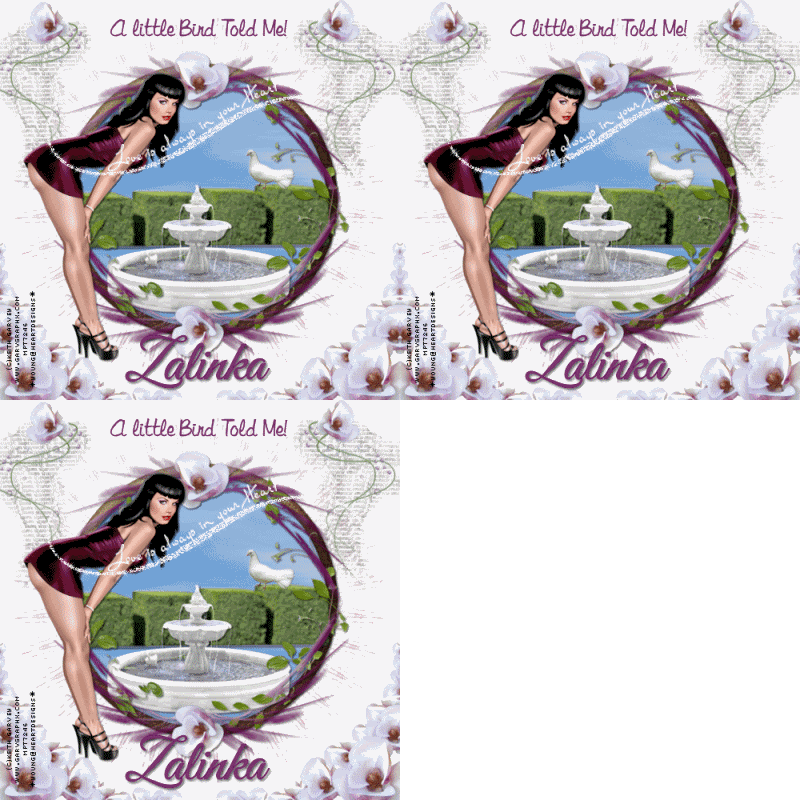
A Little Bird Told Me Animated Tutorial By Sher

This tutorial was written By Me On June 28, 2009 and similarities is purely
coincidental. Im using the beautiful work of Keith Garvey, you must have a license to use his tubes. You can get his tubes and license Here
The Scrap kit is called Sweet Magnolia and it was created by Zalinka ,Thanks Sweetie for this Beautiful free kit! you can get it Here
This is a full size kit and you will have to work a little on the resizing of the elements but it will be well worth it! Its so Beautiful!!
The font for the title is Libby script you can get it Here
The font For the name is called Good Vibrations and it is a PTU font so I cant provide it, any pretty
script font will work.
The Mask is Vix's mask 95 you can get her cool masks Here
The bling is in my supplies . I obtained it on a random search in 4 shared. Lisa I would love to give you the credit for creating such a Beautiful bling, I did a search on the group in the copywrite layer and couldnt find you to properly ask you for the usage. If you find this tutorial and want the credit for the bling please email me so I can add it to this tutorial.
If you dont want me to use this , please email me and I will take it it off this tag
My Supplies are Here
Plug ins Xenofex you can get a demo version Here
You must have a working knowledge of Psp and Animation shop to do this
tutorial. Remember it is just a guide to a fairly simple tutorial. You can use any tubes you wish and any kit.

Ok lets get going

1.Open a new layer 600x600
flood fill white

2. Open the mask in psp and minimize it for now
2.Open the bling in Animation shop and leave open till we are ready for animations.
3. Open a frame of choice I used element 14 and resize to your liking , then copy and paste it in center of your canvas.
4. Using your magic wand tool click in center of frame and copy and paste a new paper ~ go
to selections ~ invert~ hit delete on keyboard~ move this layer under frame.
5. Go to effects~ plug ins ~ xenofex~little puffy clouds~ click ok
6.Open frame 9 and resize to your liking and copy and paste it as a new layer over the other frame.
7. Start adding all you Beautiful elements , resizing then and placing them where desired or see my tag for placements.
8. Add drop shadows of choice to all you elements.
9. Add the tube you wish to use, resize to your liking, and place where desired,or see my tag for
Placement, add a slight drop shadow and sharpen a little.
10. When you have everything the way you want, Go to image and resize all layers to 500x500
Add your copyrights, names , text ect.
If you do not wanna animate this tag merge all layers and your done.

Are you ready to animate this?
Ok lets go!
1.In animation shop go to windows cascade and then to view zoom out by 1
delete the first layer. You should have 5 layer left.
2 . In psp go to edit~ copy special ~ copy Merge~
take this tag now to animation shop and paste as a new animation
Duplicate it 4 times so we have the same number of frames .
3. On the Tag animation go to edit select all
On the bling animation go to edit~ select all~ copy
Take this now back to your tag animation and paste into selected frames
In a spot you desire.
Go to view and Look at your Beautiful Creation. If you Love it , save as a gif and your done!
I hope you enjoyed doing my Tutorial!

Huggies

Sher


Come Light My Firecracker Animated Tutorial By Sher


This tutorial was written by me on June 28, 2009 any similarities is purely coincidental.
You must have a working knowledge of psp and animation shop to do this tutorial.
Today im using the beautiful work of Scott Blair you must have a license to use his tubes. You can purchase his tube and get the license Here
The FTU scrap kit was made by Babs, Thanks Sweetie! you can get this sensational kit Here
The template I am using was made by Yvette Thanks Sweetie for this wonderful template! You can get it Here
The mask I'm using is Vix's mask 166 Thanks Hun! you can get her cool masks Here
The font I'm using is 2 peas 4th of July You can get it Here

This is just a guide for a pretty easy tutorial remember any kit or tube can be substituted.

Ok Let go!
1. Open mask in psp and minimize it
2. Open the template in psp and copy and close original.
Delete the copy write layer.

Go to Image and resize the canvas layer to 700x700
Flood fill this layer white.
3. Select the papers from the kit you will be wishing to use in the templates and copy and close the originals and resize the papers to 400x400.
4. Starting on layer 1 (circle layer) duplicate this layer. On the duplicate layer select it in the layer pallet~ select all~ float ~defloat~
copy paper of choice and add as a new layer~invert~ hit delete on keyboard ~ select none.
5 . select the original duplicated layer and resize it to 110 % and repeat step 3. After adding new paper you can now delete both the template circle layers.
6. Repeat step 3 on the other 3 layers and once you have new papers added you can delete the original template layers.
Add a drop shadow of choice to the papers.
7. Add your elements ~ resize to your liking and place them where desired or see my tag for placement. Add drop shadows of choice.
7. Add your main tube of choice .
8. Click on canvas layer ~ add a new raster layer~ copy and paste a new paper or flood fill
with a color of choice~ go to layers ~ new mask layer~ from image~select Vix mask 166~ check the source luminance and click ok~ merge this group on one layer.Lower the opacity to 40 %
If you do not plan on animating this tag , resize the tag (all layers) to 500x500
Add copyright , Name and whatever text you want ~ merge all layers and your done.

Animation

If you want the firecracker animation on your tag make sure the lady tube is on top
of all the layers and the firecracker is right under her. Place the firecracker in the right hand corner. Go to edit~ copy special~ copy merge and take to animation shop and place as a new layer. Back to psp ~ Move the firecracker a tad and repeat ~ keep repeating until your firecracker is completely gone, I had 11 frames in all. It just depends on how you want yours to look.
View your animation and set your frame properties to whatever you wish~ I set mine to 20~If you like what you have created save as a gif and your done.
Thanks for trying my Tutorial!

Huggies
Sher



Thursday, June 25, 2009

Love Listens Animated tutorial By Sher


This tutorial was written by me on June 25, 2009
any similarities is purely coincidental. This is a fairly easy tutorial, but you must
have a working knowledge of PSP and Animation Shop. No outside filters were used.
Today In using the beautiful works of Mark Blanton
You must purchase those tubes and get his licenses to use his work. You can get them Here
The FTU scrap kit was made By Zalinka, Thanks sweetie for this awesome kit! You can get it Here
The Font I used is called Libby Script you can get it Here

Ok lets go!
1. Open a new canvas 700x700 and flood fill white.
2. Open paper of choice from kit and resize to 800x800
I used paper 10 from the kit. Copy and paste it as a new layer and position it so the crumples and invisible.
3.Open Zalinka Ship and copy and paste as a new layer ~ resize to your liking and place where desired on the horizon. Name this layer Zalinka ship layer
4. Open Lighthouse element and paste it as a new layer and resize to your liking, position it
where desired or see my tag for placement. Name this layer lighthouse.
5. Open palm tree and copy and paste it as a new layer, resizing it to your liking and positioning
it where you want, or see my tag for placement.Name this layer Palm Tree
6.Open Lifebuoy and copy and paste as a new layer~resize to your liking and
position it where desired . Name this layer Lifebuoy
7. Open you Mermaid of choice and copy and paste as a new layer~ Re-size to your liking~ positioning her where desired or see my tag for placement. Name this layer Mermaid.
8. Open shells , starfish or other elements and resize them to your liking then paste them
where desired , then merge all those together
so they are all on one layer. Name this layer Shells
9. Open Seagull and copy and paste it as a new layer~ resize to your liking and position it where desired or see my tag for placement. Name this layer Seagull.
10. resize all layers to 500x500
add your name , text of choice , and designer copyrights , if you don't plan to do animations, merge all layers and
your done.
If you do want to animate this , 1st frame- go to edit ~ copy special ~copy merge
take to animation shop and paste as a new animation.
2nd frame- back to psp~ move the ship a tad and the seagull a tad~
edit ~copy special~copy merged~ take to animation shop and paste after current frame.
continue doing these steps you may want to use your deform tool and rotate the seagull 10 degrees or so in a couple of the steps. I have 10 frames , on the last frame no seagull or ship is showing.
after you get 10 frames in animation shop go to edit~select all~ frame properties ~ set them at 100.
View animation and if you like what you have created, save as a gif and your done.
Thanks for trying my tutorial.

Huggies
Sher


Monday, June 22, 2009

American Babe


This Tutorial was written by Me On June 22, 2009
Any similarites is purely coincidental. You need to have a basic Knowledge of Psp and animation shop to do this tutorial.
Today Im using the Beautiful work of Elias Chadzoudis you must have his license numbers to use his tubes, you can get the tubes and licenses Here
The template im using was made by Missy , template 200 you can get it Here
The FTU Scrapkit was Made by Simone you can get it Here
The Font USStarsNStripes can be found Here
You can get my Word Art Here
Ok lets go!
1. Open Template up in psp~copy and close original
Delete the copyrights
click on bottom layer In the pallet and go to image~canvas size and resize to 650x650
Flood fill layer white.
2. Click on Circle background layer in the pallet~Selections~select all~float~defloat~
Open paper of choice~ I used paper 1~ and copy and paste as a new layer~resize if you choose , I did because I wanted the starts to be smaller~ Invert~ Hit delete on keyboard~selections~select none. Delete the circle template layer
3. Click on the dotted circle layer~ go to selections~select all~float~defloat~ Open a new canvas
650X650 and flood fill red color I used c00000~ copy and paste as a new layer~ selections~
Invert~Hit delete on Keyboard~selections~select none~ delete the dotted circle template layer.
4. click on star layer~ select all~ float~defloat~Open a new canvas layer and flood fill
with a color of blue I used 000080~ copy and paste this new paper as a new layer~
selections~invert~ hit delete on keyboard~ selections~select none. Delete the star template layer.
5. Click on star background layer~ select all~float~defloat~ open red paper up again and paste
as a new layer~selections~ invert~ Hit delete on keyboard ~selections~select none
delete the star background template layer.
If you wanna animate this tag do steps 6 and 7 if you dont you can skip these two steps.
6. Click on the Red Star layer in the pallet~ duplicate this layer twice.
Click on the middle red star and select all~ float~ defloat~ flood fill white ~select none.
7. Click on top red star layer ~repeat 6 but change the color to Blue instead of White~ select none. Name these layers star 1 start 2 and star 3
8. Resize all layers to 500X500
9 Add tube of choice and place where desired , resizing to your liking, or see my tag
for placement.
10. Open any elements you want and copy and paste where you want
resizing and adding drop shadows of choice.
11.Add word art or create your own.
12. Add copyrights and name.

No we are ready to animate this tag!!
1. In Psp Close off the star 2 and star 3 layer~ edit ~copy special~copy merge
take to animation shop and paste as a new animation.
2. Back to psp close off star layer 1 and open star layer 2~
Edit~copy special~copy merged~
Take to animation shop and paste after current frame.
3. Back to psp ~ close off star layer 2 and open star layer 3
Edit~ciopy special ~copy merged~ take to animation shop and
Paste after current frame.
4. In animation shop go to edit ~ select all~ animations~ frame properties and set to 50
View your animation and if you like what you have created save as a gif and your done!
Thanks for trying my tutorial!

Huggies
Sher


Friday, May 8, 2009

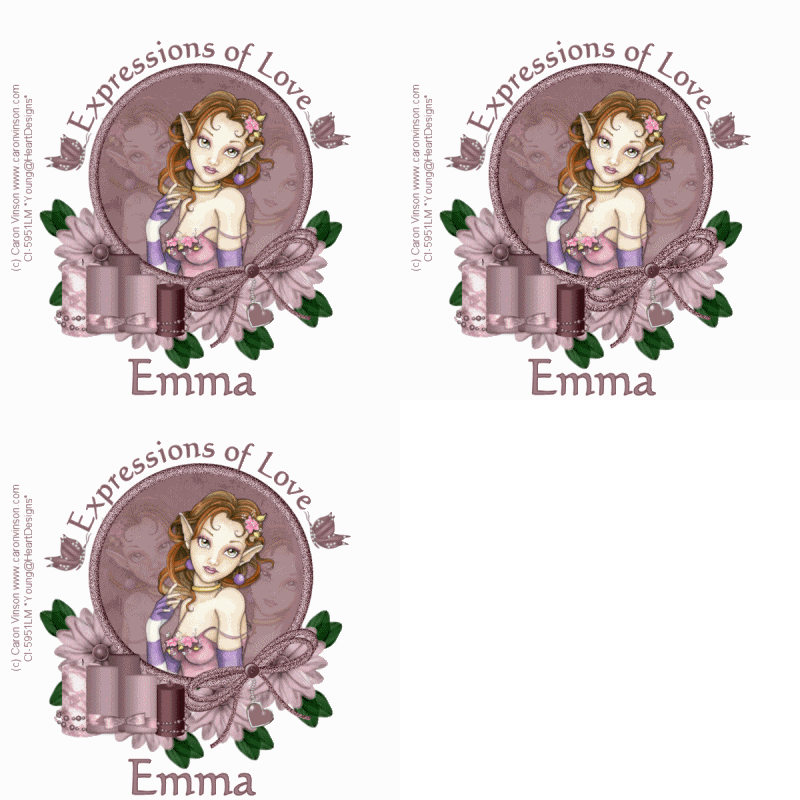
Expressions Of Love Tutorial


This Tag was made using Pspx2 and Animation Shop
Im using the Beautiful work of Caron Vinson. If you wish to use her work you must purchase her tubes and get her licenses from HERE.

The Beautiful scrap kit I used is called Tickle me Pink and it can be found HERE.


Ok lets get going!!

Open a new canvas 800x800
Add a new raster layer and flood fill white
Open frame 1 from the scrap kit copy & paste as a new layer.
Using the magic wand click just inside the frame to get the ants going round
then open paper 2 copy and paste it as a new layer
Go to Selections, modify expand by 2 then go back to selections ,
click invert ,and then hit delete on keyboard
And select none.
Move the paper under the frame.
Using your magic wand again click just inside the frame layer to get those measly ants again,
Open you tube of choice
Copy and paste as a new layer
Position her where you want. go to selections , invert and then hit delete on your keyboard.
Move her below the frame, she is the main tube.
Duplicate tube layer 2 times.
On the 2 copies position them where you want, mirror one
if you choose, then grab the eraser tool and erase any thing
sticking out over the edge of frame,
and lower the opacity to 20% on both
Open the elements, and copy , paste, re- size and position them where desired.
Text on curve.
Using preset shape select elipse shape and draw out a circle using just the foreground in your material pallet
Make sure its a color not used in the tag.
It need to be slightly bigger than you frame so none of it shows.
Select this layer
add a new raster layer
On this layer is where you add text. it will automatically add a vector layer
Using text tool click on outer edge of the circle till u see a curved A
Choose your desired font, I used Calligraph421BT,
and type out your desired text, it should be going around the circle.
Position the text in the box by moving the cursor before or after the text,
and click on the space bar as many times as you need , watch the text move around the circle. and then once your text is where you want it to be Click Apply.
convert this layer to a raster layer.
Delete the extra raster layer that has nothing on it and the circle vector layer.
Add your desired drop shadows to all the elements , tubes or text.
re size your tag to 500x500
Add copyrights
Your Desired Name
Merge all Layers
Save and your done.

If you Love Animated tags
before you Merge and save
click on the frame layer and go to adjust, add noise
circle gaussion
And check monochrome
Noise 40%
Then go to edit, copy special copy merge
go to animation shop and paste as a new animation

Back to psp undo and redo noise this time use 50%
repeat process back to AS Paste after current frame
Back to psp undo noise redo noise 60%
repeat back to AS copy after current frame
You should have 3 frames
View animation and if you like what you see
Save as gif and your done.

I hope you enjoy your tag and please show me your results!
This is My first tutorial and of you have problems let me know!

Huggies
Sherry